The Linux operating system runs gCADPlus successfully. Since gCADPlus is Windows software, Linux requires the installation of a Windows emulator in the Linux environment before installing gCADPlus. In our design studio, we install the Wine emulator to provide a Windows environment for gCADPlus under Linux.
Tip: There are various Linux distributions, and we have tested gCADPlus on several of them. Our first attempt used the Ubuntu Linux distribution, as shown below.

Tip: The WINE Windows emulation software must be installed before gCADPlus. Once WINE is running, download gCADPlus from this website and run the gCADPlus setup.exe application.
Installation steps
To install an application under Linux Mint using Wine, download the Windows installer file for gCADPlus, then open a terminal window, navigate to the file’s location, and run the installer using the command “wine [installer_file_name]” – essentially “executing” the Windows installer within the Wine environment.
Save the gCADPlus setup file and store it in your downloads folder.
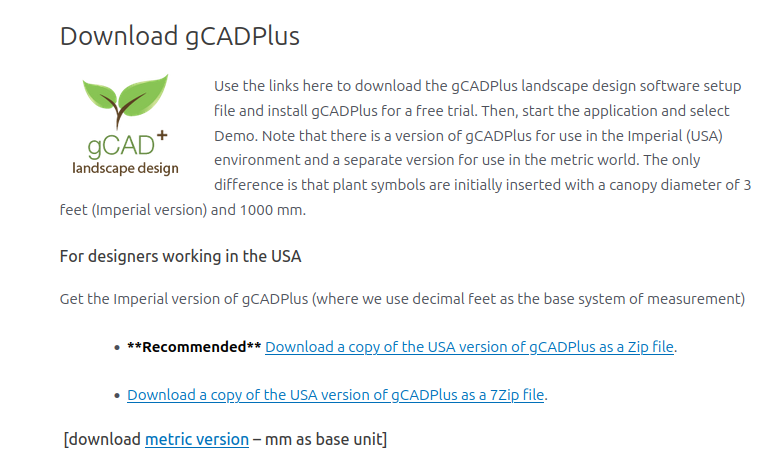
Navigate to the Downloads folder and extract the install file then run the gCADPlus setup file
$ wine gCADPlusMetricSetup.exe
File structure after installation of gCADPlus
The file structure is similar to that of gCADPlus in the Windows environment.
Template files, symbol libraries, plant database files, and a Jobs folder are installed under User> Documents>gCADPlus while /.wine/drive_c/Program Files (X86)/[Application]_Name, holds the core code.
These are hidden files in the Linux file manager – user Control + H to reveal them.
Tip: We now favour the Linux Mint distribution over Ubuntu.
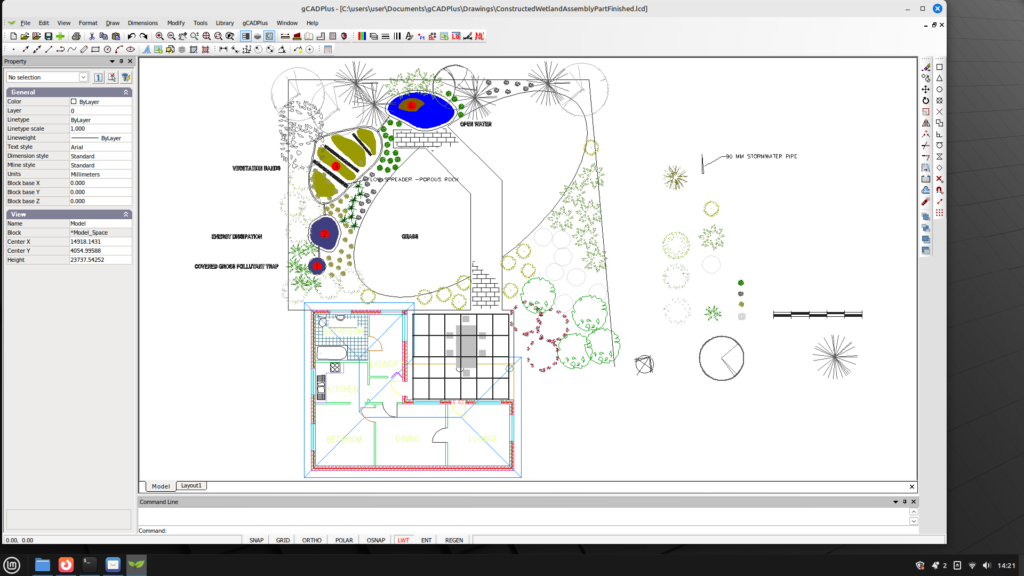
Here is gCADPlus running under the Linux Mint distribution.
Upgrade your copy of gCADPlus
Steps to take:
1. Use the About gCADPlus box on the Help drop-down menu of your copy of gCADPlus and check the current release number of your copy of gCADPlus against the version currently available for download.
2. Make sure that you can find the original email with details of the user name and activation code for gCADPlus. You may have to re-enter those, so do not start the process until you have the codes.
3. Ensure you have a backup copy of your complete store of CAD drawings, especially those in your design practice’s Jobs folder.
Tip: Also make sure the backup includes any .gcp files you may have created, especially those in the gCADPlus folder under the My Documents or Documents folder. Also, back up any templates that you may have added to gCADPlus. These are found in Documents>Data>Templates.
4. We have found some difficulty running the gCADPlus uninstall option. (cd to the folder containing the uninstall.exe and in the Terminal Window type $Wine uninstall.exe) We find that it easier to use the Files tool and navigate to the desktop and simply delete the gCADPlus folder.
5. Then download the upgrades copy of gCADPlus and save to the Downloads folder. Extract the .zip file to uncover the gCADPlus.exe setup file.
6. Navigate to the Downloads folder and extract the install file. Then start a new Terminal session and run the gCADPlus setup file [$ wine gCADPlusMetricSetup.exe]